

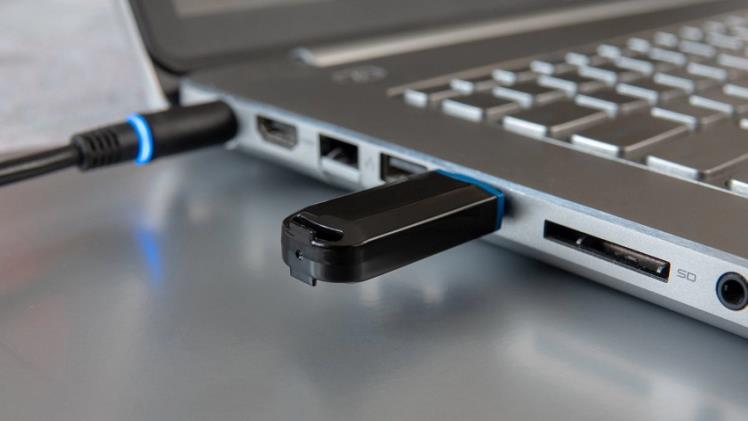
Flash drives have become ubiquitous in the digital world as compact, portable data storage devices. However, like any other digital devices, they’re susceptible to issues like data corruption, which can lead to inaccessibility of valuable data. Understanding how to fix a corrupted flash drive and recover data is essential, particularly if you rely heavily on these devices for data storage and transfer. This article explores the reasons behind flash drive corruption, how to fix a corrupted flash drive, and ways to recover lost data.
Basic of Flash Drive Corruption
Flash drive corruption is a common problem where the device’s filesystem becomes unreadable or incompatible with your operating system. This corruption can stem from various causes, including abrupt removal of the flash drive from a device, virus attacks, bad sectors, and even improper formatting. The signs and symptoms of a corrupted flash drive may include error messages, files becoming hidden or read-only, or the flash drive not being recognized by your computer.
Initial Steps to Take When a Flash Drive Becomes Corrupted
When your flash drive becomes corrupted, first ensure it’s not physically damaged, as physical damage requires a different repair approach. Check the flash drive on a different computer or port to confirm if the issue is with the drive or the computer. If the flash drive is accessible at all, back up your existing data, if possible.

Various Methods to Fix a Corrupted Flash Drive
Using built-in Windows tools
- Check Disk utility: Right-click on the flash drive in Windows Explorer, select ‘Properties’, navigate to ‘Tools’ and then ‘Check now’. This utility scans the flash drive for errors and attempts to fix them.
- Device Manager: Device Manager can be used to fix driver issues. Open Device Manager, find your flash drive, right-click on it and select ‘Uninstall’. After uninstalling, remove the flash drive and restart your computer. Plug the drive back in, and Windows should automatically reinstall the drivers.
- Disk Management: To reformat or repartition the drive, go to Disk Management, find your flash drive, right-click it and choose ‘Format’. Note: This erases all data on the drive.
Using built-in Mac tools
- Disk Utility: Open Disk Utility, select the flash drive from the list, and click ‘First Aid’. Disk Utility will scan and repair errors on the flash drive.
Using third-party tools
Various third-party tools like Uneraser, EaseUS, etc., offer reliable services to recover data from corrupted flash drive and fix this problem. However, these tools often come with costs, and the use of them involves a risk of data being overwritten.
How to Recover Data from a Corrupted Flash Drive
Data recovery using built-in OS methods
Both Windows and Mac have built-in data recovery methods, such as Windows’ Previous Versions feature or Mac’s Time Machine. However, these rely on you having previously set up regular backups.
Data recovery using third-party software
Software like Uneraser, Recuva, or PhotoRec can recover data from corrupted drives. However, the process varies by software. Generally, you install the software, scan your flash drive, review the files it can recover, and then recover them to a different location.
Send to professionals
In severe cases, where neither built-in methods nor third-party tools can recover the data, consider sending the flash drive to data recovery professionals. This is typically the most expensive option but can be necessary if the data is of significant importance.
Preventing Flash Drive Corruption
Preventing corruption involves proper usage and handling of flash drives, regular data backup, keeping flash drive drivers updated, and safely removing the flash drive from the computer.
- Proper usage and handling: Keep your flash drive in a safe, clean, and dry environment to avoid physical damage. Don’t force the flash drive into the port, as it could damage the connectors.
- Regular data backup: Regularly backing up your data reduces the risk of permanent data loss from corruption. Using automatic backup software or cloud services can help streamline this process.
- Keep flash drive drivers updated: Ensuring that your flash drive’s drivers are up-to-date helps to prevent compatibility issues and potential corruption. Most operating systems will do this automatically, but manual checks can also be useful.
- Safely removing the flash drive: Always use the “eject” or “safely remove hardware” option before removing your flash drive from a computer. This prevents data corruption that can occur if data is being written to or read from the drive when it’s disconnected.
Conclusion
Understanding how to fix a corrupted flash drive and recover data is an essential skill in our increasingly digital world. This article has walked you through various methods to handle this situation, including the use of built-in tools in your operating system, third-party software, and professional recovery services.
By taking preventative measures such as regular data backup and proper handling, you can significantly reduce the likelihood of flash drive corruption. But when it does happen, knowing the steps to recover your valuable data can save you a lot of stress and potential loss. Remember, the key to effective data recovery is acting promptly once you suspect corruption – the sooner you start the recovery process, the higher your chances of recovering your data.
